- Login to Mindmatrix account.
- Click on the profile icon on the top right corner of your screen.
- Hover on the user profile and click "View".
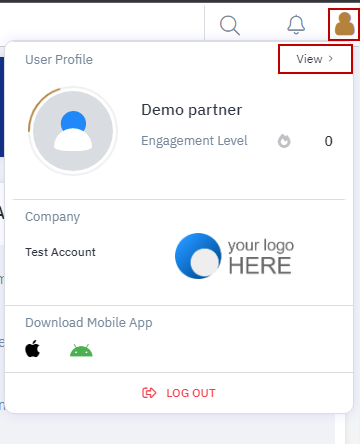
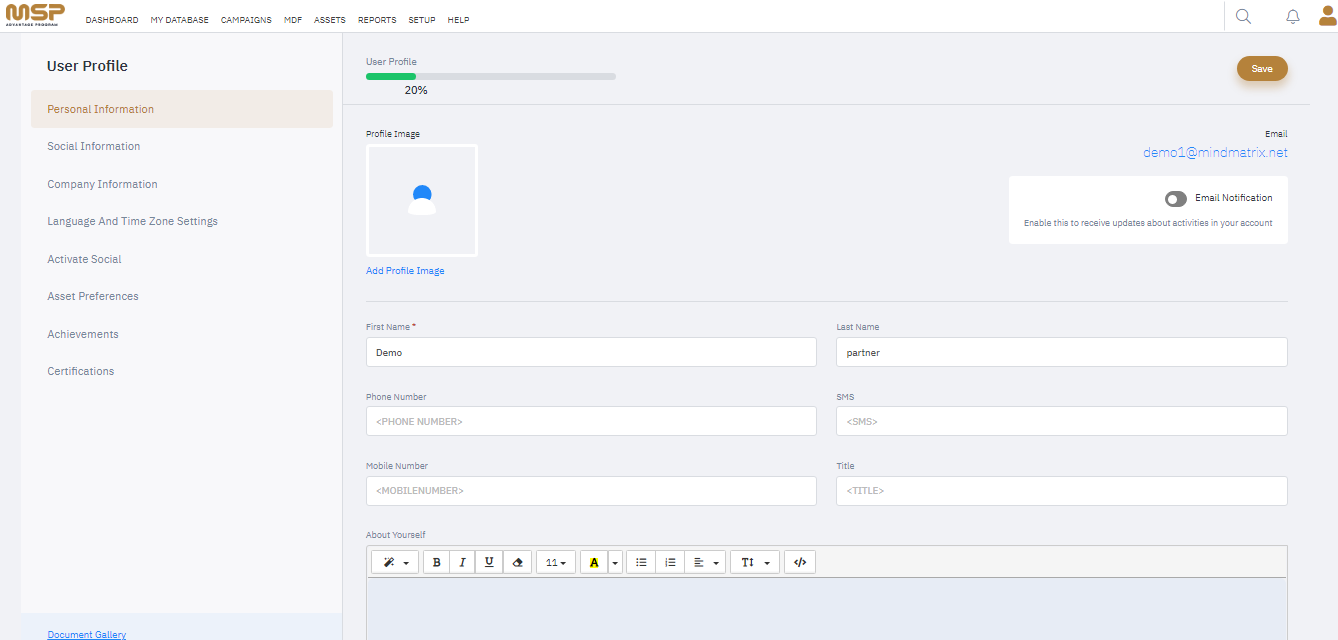
- This will open your user profile for editing. This area includes both a “Personal Info” and “My Location” tab, "Language and Time Zone Settings", an "Activate Social" tab for your social media info as well as an "Asset Preferences" tab.
- PERSONAL INFO: Make any desired changes to the content in the Personal Info tab. **Be aware that this information will be used to personalize the individual contact information of any communications sent from this user’s account. (For a instructions on how to upload assets such as signatures and profile pictures, visit this article).
- Social Information: We can add our website link, blog, twitter ,facebook and linkln.
- Company Information: Make any desired changes to the content in the Company tab. **Be aware that this information will be used to personalize the company contact information for any communications sent from this user’s account.
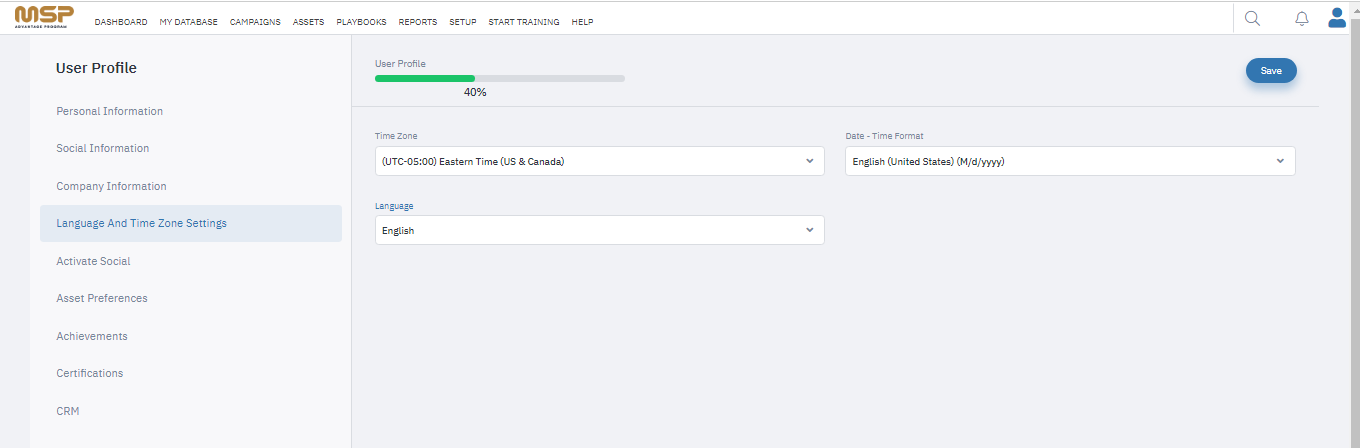
- LANGUAGE AND TIME ZONE SETTINGS: This tab allows you to update your language and time zone preferences. This impacts when your emails are sent out through the MSP Advantage email service.
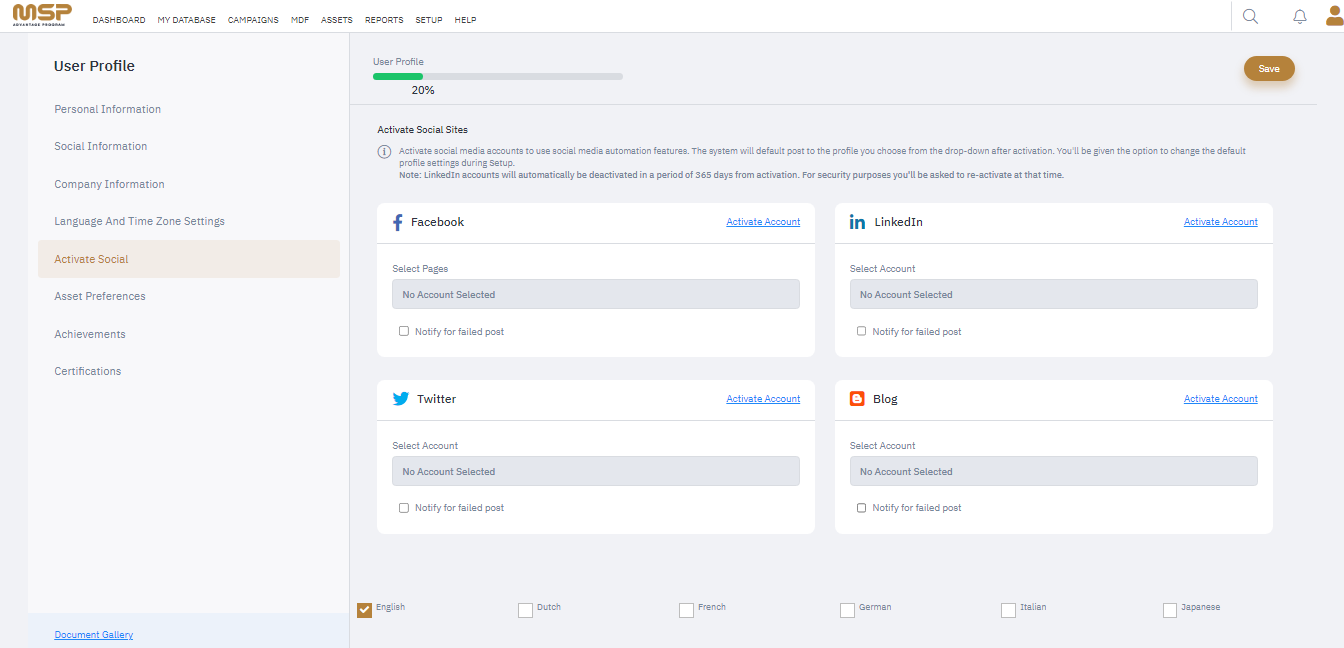
- ACTIVATE SOCIAL: Make any desired changes to the content in the Social tab. **Be aware that this information will be used to personalize the social information of any communications sent from this user’s account.
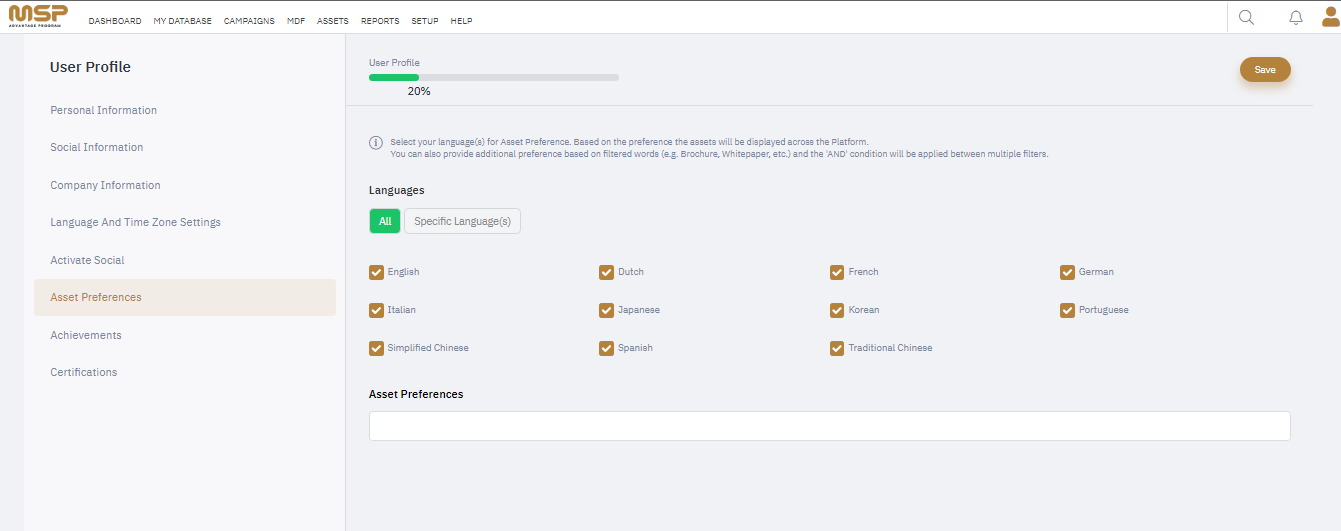
- ASSET PREFERENCES: Select the languages for asset preference. You can also give additional filters by typing them into the filters box.
- Click “Save” to update your record with the changes.
|